> ## Documentation Index
> Fetch the complete documentation index at: https://developer.onetrust.com/llms.txt
> Use this file to discover all available pages before exploring further.
# Display User Interfaces
# Overview
The OneTrust SDK manages several different user interfaces to display to a user. Before showing how to display them, please review the list of interfaces below.
> 📘
>
> The SDK renders our UI with AppCompatTheme. If your app uses a theming library and is clashing with ours, reference this [section](https://developer.onetrust.com/onetrust/docs/display-user-interfaces-android-legacy#setotsdktheme) to see how to handle it.
[block:parameters]
{
"data": {
"h-0": "Name",
"h-1": "Description",
"h-2": "Method to Show",
"0-0": "Banner",
"0-1": "Notice to the user of their privacy rights. Has configurable text and buttons for **Accept All**, **Reject All**, **Manage Preferences**, and **Close Banner**.
**Note:** Each of these buttons can be toggled On/Off in the Admin Console.",
"0-2": "`setupUI()`
`showBannerUI()`",
"1-0": "Preference Center",
"1-1": "An interface for the user to view their current profile settings and update their choices based on the configuration provided for them. Has configurable text and buttons for **Accept All**, **Reject All**, **Save Settings**, and **Close Preference Center**.
**Note:** You can choose to hide each button except **Save Settings** - this is required for a User to update their choices.",
"1-2": "`setupUI()`
`showPreferenceCenterUI()`",
"2-0": "Purpose Details",
"2-1": "The Purpose Details (or Category Details) view shows granular detail about the category and also shows the **SDK LIst** link, **Vendor List** link, and child categories based on configuration.",
"2-2": "none, sub-view of Preference Center",
"3-0": "SDK List",
"3-1": "An interface to show a granular list of SDKs to the user. This list may be filtered by Category to provide more transparency to the User.
**Note:** This can hidden in Template Settings in the Admin Console.",
"3-2": "none, sub-view of Preference Center",
"4-0": "IAB Vendor List",
"4-1": "An interface, shown only for `IAB2` type templates, displays a list of 3rd party ad tech vendors under management by the application. This provides a way for users to opt in/out of consent for a particular vendor.",
"4-2": "none, sub-view of Preference Center",
"5-0": "Vendor Details",
"5-1": "A child interface of Vendor List, this view shows more granular information about a vendor and its Purpose, Legitimate Interest, Special Feature, and Special Purpose settings.",
"5-2": "none, sub-view of Preference Center"
},
"cols": 3,
"rows": 6,
"align": [
null,
null,
null
]
}
[/block]
> The user interfaces without methods indicate they can only be navigated to based on User navigation and Admin Portal settings.
# `setupUI`
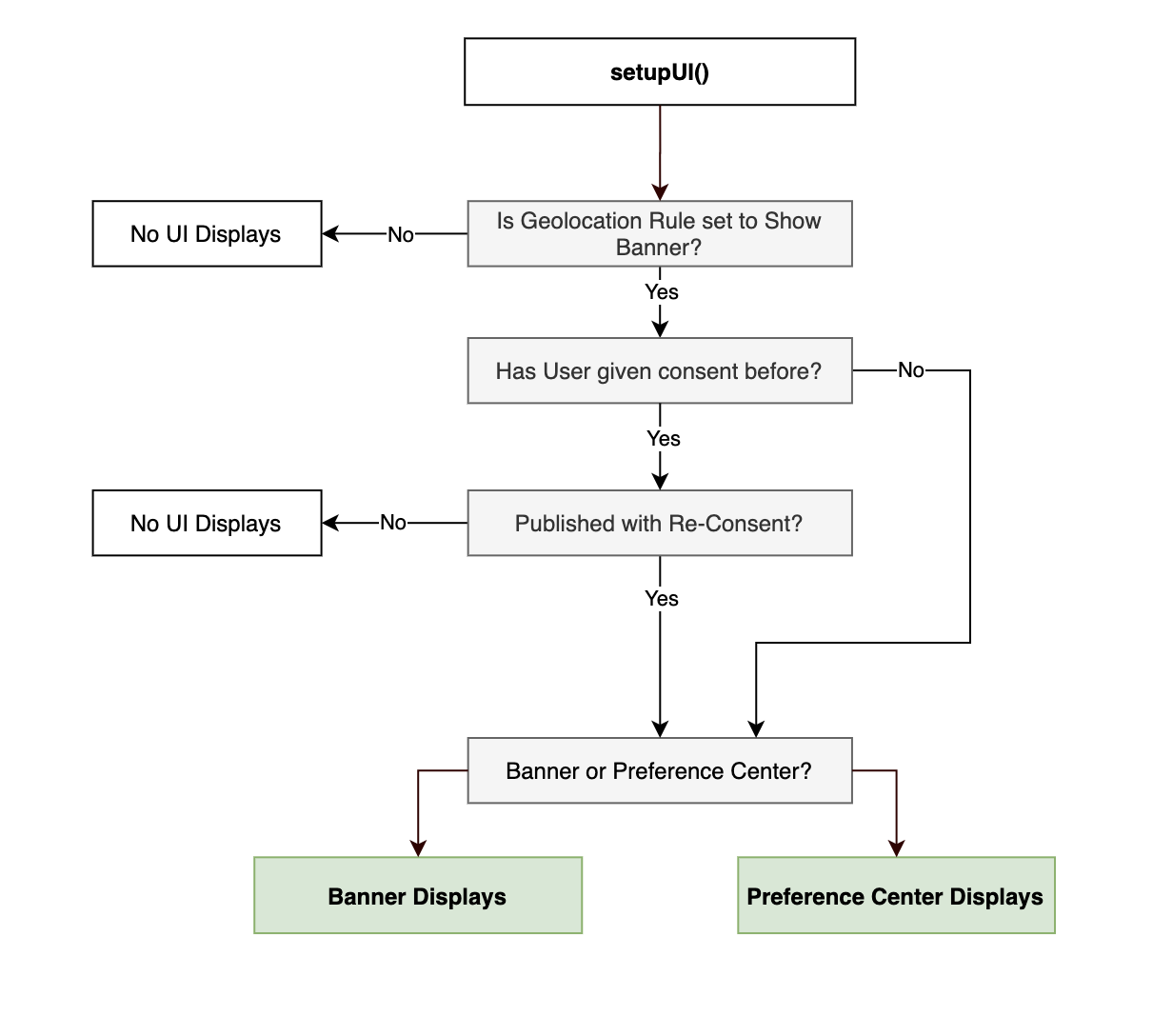
This method can be used to render a UI for Banner or Preference Center. `setupUI()`automatically evaluates the `shouldShowBanner()` logic to determine whether or not a banner should be shown to users. See below for more info on how `shouldShowBanner` gets calculated. See below for more info on how [shouldShowBanner()]() gets calculated.
| Param | Description |
| ----------------- | ----------------------------------------------------------------------------------------------------------------------------------------------------------------- |
| AppCompatActivity | Reference to the FragmentActivity where the UI will be shown. |
| UIType | Either `.BANNER`, `.PREFERENCE_CENTER`, `.CONSENT_PURPOSES` or `nil`. This determines which UI to display if the `shouldShowBanner` check is computed to `true`.a |
 ```java
// Java - This will render the OneTrust Mobile Banner and Preference Centers, respectively.
new OTPublishersHeadlessSDK(this).setupUI(RenderNativeUIActivity.this, UIType.BANNER);
new OTPublishersHeadlessSDK(this).setupUI(RenderNativeUIActivity.this, UIType.PREFERENCE_CENTER);
new OTPublishersHeadlessSDK(this).setupUI(RenderNativeUIActivity.this, UIType.CONSENT_PURPOSES);
```
```java
// Java - This will render the OneTrust Mobile Banner and Preference Centers, respectively.
new OTPublishersHeadlessSDK(this).setupUI(RenderNativeUIActivity.this, UIType.BANNER);
new OTPublishersHeadlessSDK(this).setupUI(RenderNativeUIActivity.this, UIType.PREFERENCE_CENTER);
new OTPublishersHeadlessSDK(this).setupUI(RenderNativeUIActivity.this, UIType.CONSENT_PURPOSES);
```
## Recommended Approaches Based on Regulatory Use Case
### GDPR / CCPA / CPRA Implementations with Banner
For implementations that require a banner, there are two approaches you can take to surface the banner.
#### Option 1: shouldShowBanner() + showBannerUI()
This option is recommended for apps that have an involved onboarding process which require you to control when UIs are surfaced from OneTrust.
Example Code:
```java
if shouldShowBanner() {
showBannerUI()
}
else {
//move on to the next step
}
```
#### Option 2: setupUI()
This option is recommended for apps that that can show the OneTrust UI without restriction. `setupUI() `automatically evaluates `shouldShowBanner()` to determine if a banner should be shown.
Example Code:
```java
new OTPublishersHeadlessSDK(this).setupUI(RenderNativeUIActivity.this, UIType.BANNER);
```
#### Preference Center
In order to give users the ability to change their consent settings at any time, most implementations require a button (usually behind the settings page) in your app that surfaces the Preference Center. This can be accomplished with `showPreferenceCenterUI()`. As this method has no conditional logic attached to it, calling it will surface the preference center every time.
### CCPA/CPRA Implementations without Banner
Although no banner is used, most implementations require a button (usually behind the settings page) in your app that surfaces the Preference Center in order to give users the ability to change their consent settings at any time. This can be accomplished with `showPreferenceCenterUI()`. As this method has no conditional logic attached to it, calling it will surface the preference center every time.
Example Code:
```java
new OTPublishersHeadlessSDK(this).showPreferenceCenterUI(RenderNativeUIActivity.this);
```
# `showBannerUI`
This method will always show the Banner UI, regardless of the `shouldShowBanner` value.
| Param | Description |
| ----------------- | ---------------------------------------------------------------- |
| AppCompatActivity | Reference to the FragmentActivity where the UI will be be shown. |
```java
new OTPublishersHeadlessSDK(this).showBannerUI(RenderNativeUIActivity.this)
```
> SDK uses activity to get the fragment manager to show the UI.
# `showPreferenceCenterUI`
This method will always show the Preference Center UI, regardless of `shouldShowBanner` value.
| Param | Description |
| ----------------- | ------------------------------------------------------------- |
| AppCompatActivity | Reference to the FragmentActivity where the UI will be shown. |
```java
new OTPublishersHeadlessSDK(this).showPreferenceCenterUI(RenderNativeUIActivity.this);
```
> SDK uses activity to get the fragment manager to show the UI.
# `shouldShowBanner`
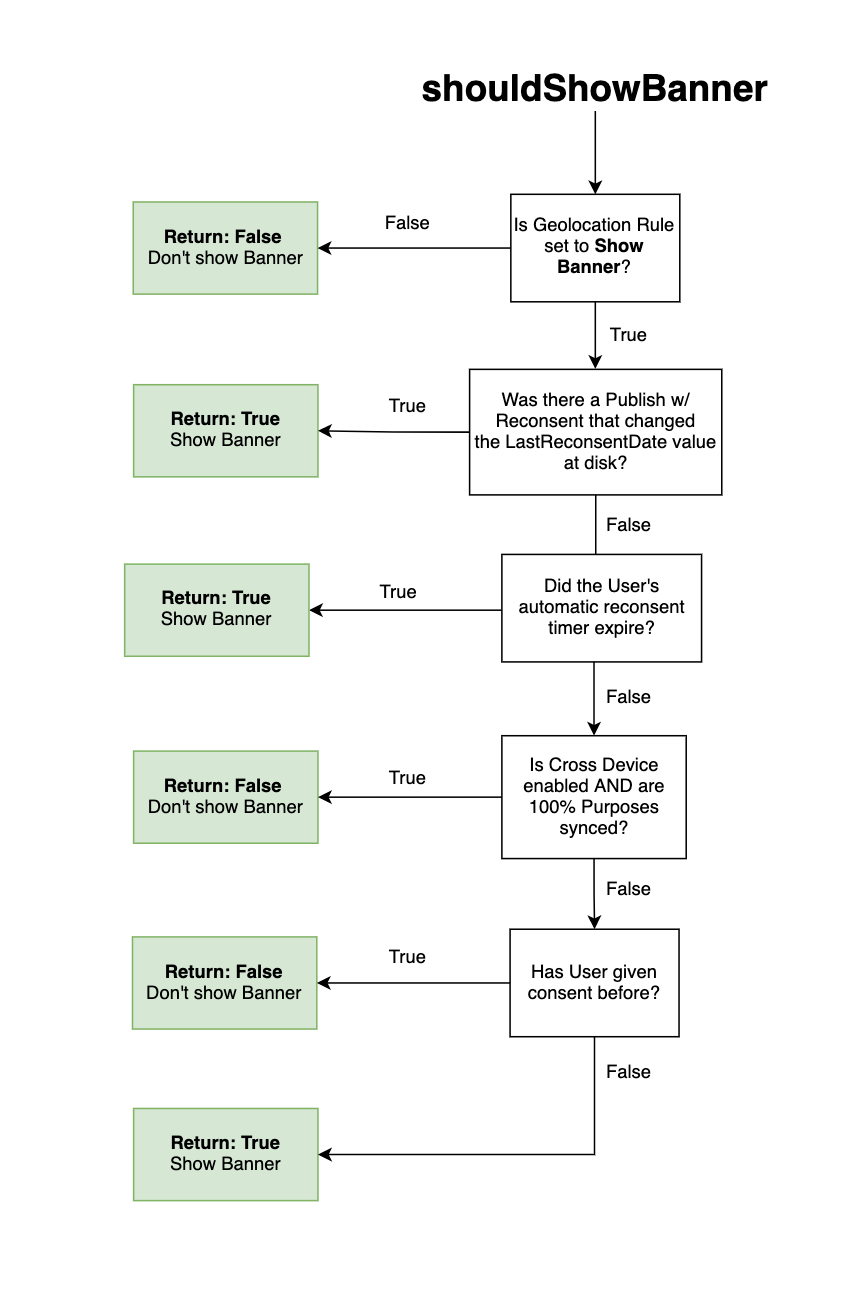
This method determines if a Banner should be displayed to the user or not based on SDK determined logic.
```java
new OTPublishersHeadlessSDK(this).shouldShowBanner();
```
## How `shouldShowBanner` gets computed:
1. Is the geolocation rule configured to show a banner? This is controlled by the `showAlertNotice` property in the JSON being `true`.
* If no, the method returns `false` because a banner is not meant to be shown for this region.
* If yes, move to the next check.
2. Is the most recent OT Admin publish configured to re-consent users? This is controlled by the `lastReconsentDate` property in JSON being *greater than* the `LastReconsentDate` last saved on disk.
* If yes, the method returns `true` and a banner should be shown.
* If no, move to the next check
3. Is the geolocation rule configured for automatic re-consent AND did the user's automatic re-consent timer expire? This is controlled by measuring the difference between `OneTrustLastConsentDate` saved on disk and the `Current Date` and seeing if it is greater than or equal to `OneTrustReconsentFrequencyDays` in the JSON saved on disk. The SDK considers the date itself and not the time consent was given. For example, if the re-consent period is set to 1 day in my geolocation rule and the user provides consent at 11:59pm GMT, the banner will reappear at 12:00am GMT (1 minute later, but the next day).
* If yes, the method returns `true` and a banner should be shown.
* If no, move to the next check
4. Is the Cross Device Consent feature enabled and were 100% of Purposes synced? This is controlled by the `profile.sync.allPurposesUpdatedAfterSync` property in JSON being `true`.
* If yes, the method returns `false` and a banner should not be shown. This is because each of the Categories/Purposes managed by the SDK were 100% synced from the user's profile on the OneTrust server.
* If no, move to the next check.
5. Has the user previously given consent?
* If yes, the method returns `false` and a banner should not be shown.
* If no, the method returns `true` and a banner should be shown because this is the first time they are being asked to give consent on the app.
6. Has a new category been added post giving consent?
* If yes, the method returns `true `and a banner should be shown again because user needs to give consent to the new category.
* If no, the method returns `false` and a banner should not be shown.
> **Note:** If you are using OneTrust's pre-built UI, it is likely you won't need to call this method, but good to know how it works as it is decided the outcome of `setupUI` method.
>
> **Note:** If you are building your own UI (BYOUI), then the method below will likely be part of your implementation.
# `isBannerShown`
This method is used, in some implementations, where the application needs to ***hide*** a "Privacy Settings" application tab or ***prevent*** a user from accessing the Preference Center before they have seen the Banner notice at least once.
The logic for computing this value is:
* Returns `-1` when the SDK has not been initialized yet
* Returns `0` when a Banner / Preference Center has never been shown
* Returns `1` when a Banner / Preference Center has been shown
* Returns `2` when the Banner / Preference Center has never been shown, but the User Profile was synced automatically (only applicable for implementations using Cross Device profile syncing).
For most implementations, the application logic can be:
* If the value returned is *greater than* 0, then show "Privacy Settings" or some link to show a Preference Center.
```java
new OTPublishersHeadlessSDK(this).isBannerShown()
```
# `showConsentUI`
This method surfaces prompts for gathering different types of consent such as an age gate.
| Param | Description |
| ----------------- | ---------------------------------------------------------------- |
| AppCompatActivity | Reference to the FragmentActivity where the UI will be be shown. |
| UIType | Pass `.AGE_GATE` in order to render the Age Gate UI. |
```java
new OTPublishersHeadlessSDK(this).showConsentUI(RenderNativeUIActivity.this, PromptUIType.AGE_GATE, otConfiguration, new OTConsentUICallback() {
@Override
public void onCompletion() {
}
});
```
**Note:** The below referenced UIType param can be used to integrate your Universal Consent Preferences into the Mobile Preference Center interface. This feature set is behind a feature toggle. Please contact your OneTrust implementation consultant for access. Reference this MyOneTrust article for configuration guidance.
# `setOTSDKTheme`
Some apps use popular theming libraries like **[Material](https://material.io/develop/android)** which can sometimes cause issues with some of the OneTrust UI styles.
If this situation occurs, your application can force OneTrust to load all generated interfaces using the AppCompat theme. This setting is passed to the the `startSDK` call.
> **Note:** The SDK does not support Material theme with this approach, this is more of a safeguard. The OneTrust team will be exploring better ways to support Android theming libraries like Material in future releases.
```java
OTUXParams uxParams = OTUXParams.OTUXParamsBuilder.newInstance()
.setOTSDKTheme(OTThemeConstants.OT_THEME_APP_COMPACT_LIGHT_NO_ACTION_BAR)
.build();
OTSdkParams sdkParams = OTSdkParams.SdkParamsBuilder.newInstance()
.setOTUXParams(uxParams)
.build();
otPublishersHeadlessSDK.startSDK(myApp.storage, myApp.appId, "en", sdkParams, myCallback}
```
If you're still seeing issues with the UI after setting the method above, we recommend setting `@style/AppTheme` in the Manifest file where you're rendering the activity. If this is not possible, the following workaround can be explored:
### Theming Library Workaround
Create a separate AppCompatActivity that is presented on top of your MainActivity. This should prevent you from having to change the theme of your app.
1. Create a new Activity in your AndroidManifest.xml that uses the AppTheme. We'll call it “TemporaryBanner”.
```xml
```
2. Create a new file which we'll call TemporaryBanner.java. Instantiate OTPublishersHeadlessSDK and call your UI method.
```java
public class TemporaryBanner extends AppCompatActivity {
OTPublishersHeadlessSDK ot;
@Override
protected void onCreate(Bundle savedInstanceState) {
super.onCreate(savedInstanceState);
setContentView(R.layout.activity_temporary_banner);
ot = new OTPublishersHeadlessSDK(this);
ot.showBannerUI(this);
setEventListeners();
}
}
```
3. Create a new method in your MainActivity that will start the UI in a new Activity.
```java
private void showBannerOnNewActivity() {
Intent intent = new Intent(this.getApplicationContext(), TemporaryBanner.class);
this.startActivity(intent);
}
```
4. Call showBannerOnNewActivity() in the onSuccess handler of startSDK() or wherever you'd like to call it.
```java
public void onSuccess(@NonNull OTResponse otResponse) {
...
showBannerOnNewActivity()
}
```
5. Set [OTEventListeners](https://developer.onetrust.com/onetrust/docs/when-consent-changes-android#listening-for-ui-interaction-events) in TemporaryBanner.java so that we end the activity on allSDKsViewDismissed() after the user has either dismissed the banner or preference center.
```java
@Override
public void allSDKViewsDismissed(String s) {
TemporaryBanner.super.finish();
}
```
### Edge-to-Edge
If your app uses styles like Edge-to-Edge that causes discrepancies with the OneTrust UI, you can set an additional theme to correct the issue.
```java
OTUXParams uxParams = OTUXParams.OTUXParamsBuilder.newInstance()
.setOTSDKTheme(OTThemeConstants.OT_SDK_UI_THEME)
.build();
OTSdkParams sdkParams = OTSdkParams.SdkParamsBuilder.newInstance()
.setOTUXParams(uxParams)
.build();
otPublishersHeadlessSDK.startSDK(myApp.storage, myApp.appId, "en", sdkParams, myCallback}
```
# `dismissUI`
This method can be used to dismiss the OneTrust SDK's UI at any time. Although dismissing the OneTrust UI is often handled by a user saving their choices, there are some situations where the application may want manual control over this:
When this method is called:
* The Banner/PC UI will be dismissed from view
* Consent will **NOT** be saved or logged to OneTrust
* Any Category/Purpose value updates will be **Reset**
* The value of `shouldShowBanner` will remain **Same**
* A warning message will be logged if this method is called and OneTrust UI is not currently being shown
| Param | Description |
| ---------------- | --------------------------------------------------------------------------------- |
| FragmentActivity | Reference to the FragmentActivity where the OT SDK's UI is currently being shown. |
```java
new OTPublishersHeadlessSDK(this).dismissUI(MainActivity.this);
```
# `showConsentPurposesUI`
This method displays the Universal Consent Preference Center. Universal Consent is a separate module and serves a different use case than Mobile App Consent. For more information, reference the following document:
```java
// java
new OTPublishersHeadlessSDK(this).showConsentPurposesUI(RenderNativeUIActivity.this)
```
# `shouldEnableDarkMode`
This method will enable Dark Mode and can override existing Dark Mode configurations on a device.
To enable dark mode, pass param as `"true"`.
```java
// java
OTConfiguration otConfiguration =
OTConfiguration.OTConfigurationBuilder.newInstance().shouldEnableDarkMode("true").build();
otPublishersHeadlessSDK.showBannerUI(RenderNativeUIActivity.this,otConfiguration);
```