
Adobe Experience Platform (Adobe Launch)
Overview
If you use Adobe Launch as your tag management solution, you can configure rules to ensure tags are fired only when the required user consent has been granted.
Loading the OneTrust CMP
There are two methods for deploying OneTrust on your website: directly embedding the CMP script in your site's source code or deploying it through Adobe Launch. For Adobe Launch deployments, OneTrust recommends using the OneTrust Consent Management for Cookies extension to simplify implementation and ongoing management.
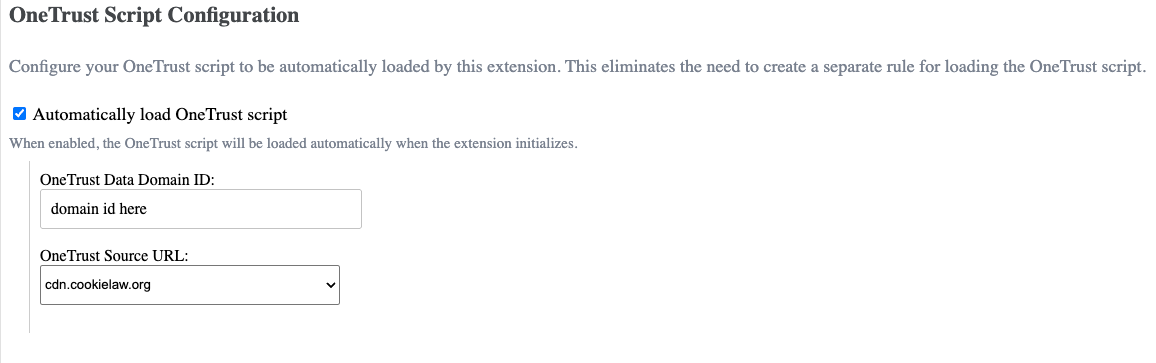
OneTrust Extension
Alternatively, if you choose to deploy the CMP script through an Adobe Launch rule, configure the rule to execute as early as possible by using an event such as Library Loaded (Page Top).
Configuring Consent Conditions
To apply OneTrust consent conditions to your rules, you’ll need to add both an event and a condition.
Event
Use OneTrustGroupsUpdatedas the event trigger. The event is dispatched when the CMP script loads, including on the initial page load and subsequent page refreshes, as well as whenever a visitor modifies their consent preferences, making it suitable for consent-driven tag execution. For more information, see here.
| Extension: Core Event Type: Custom Event Custom Event Type OneTrustGroupsUpdated Any element |
Condition
OneTrust stores consent information in two locations: the OptanonConsent cookie and the OnetrustActiveGroups data layer variable. If you are not using the OneTrust extension, consent-based conditions can be configured to reference either of these values when determining whether a tag should execute.
| OptanonConsent | Logic Type: Regular Extension: Core Condition Type: Cookie Return true if the cookie named OptanonConsent has the value C0004:1 (replace purpose ID accordingly) Enable 'Regex' toggle |
| OnetrustActiveGroups | Logic Type: Regular Extension: Core Condition Type: Variable JavaScript variable named OnetrustActiveGroupsHas the value ,C0004, (replace purpose ID accordingly)Enable 'Regex' toggle |
If you are using the OneTrust extension, you can configure your condition to reference OnetrustActiveGroups .
| Logic Type: Regular Extension: OneTrust Consent Management for Cookies Condition Type: Select the appropriate purpose condition OneTrustActiveGroups Variable Contains: ,C0004, (replace purpose ID accordingly) |
Adobe Web SDK
There are two methods for managing consent for the Adobe Web SDK: conditionally triggering the tag based on the user's consent preferences, or using the setConsent command to govern how the SDK collects and processes data.
Rule Firing Conditions
To manage consent by conditionally firing the Adobe Web SDK tag, refer to Configuring Consent Conditions above.
setConsent
setConsent is an Adobe Web SDK command used to communicate a user's consent status to the SDK. Based on the consent value provided, the SDK can be configured to send data (in), discard data (out), or apply the configured default consent behavior when consent has not yet been determined. For more information, see the Adobe documentation here.
Setting the Default Consent
Adobe provides two methods for configuring the default consent state for the Web SDK: setting the value within the Adobe Web SDK extension or configuring it programmatically through code. For more information on the code-based approach, see the Adobe documentation here.
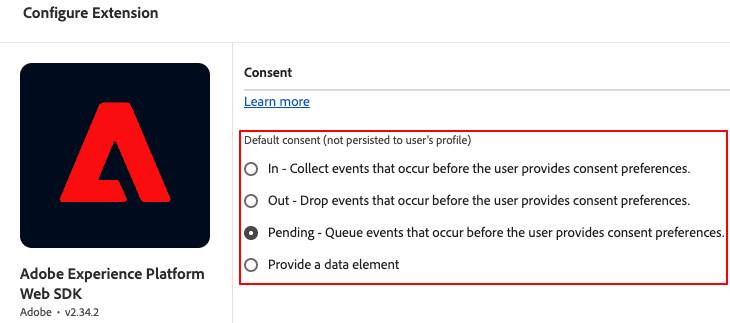
Adobe Web SDK Extension
The Web SDK supports three default consent states:
- in: Data collection operates normally until the user opts out.
- out: Data is permanently discarded until the user opts in.
- pending: Data is queued until the user opts in and discarded if the user opts out.
Updating Consent in the Web SDK with setConsent
The setConsent command can be executed as a rule in Adobe Launch. OneTrust recommends the following configuration:
| EVENTS | Event Type: Custom Event Custom Event Type: OneTrustGroupsUpdated Any element |
| CONDITIONS | None |
| ACTIONS | Extension: Core Action Type: Custom Code Language: JavaScript Insert JavaScript code below |
(function() {
    const ONETRUST_PURPOSE_ID = "C0002"; //update purpose ID according to your configuration
    let lastConsent = null; //tracks the last consent state to prevent duplicate setConsent calls during the current page session

    function getPurposeConsent(ONETRUST_PURPOSE_ID) {
        const onetrustConsent = window.OnetrustActiveGroups;
        if (!onetrustConsent) return null;

        return String(onetrustConsent)
            .split(",")
            .map(s => s.trim())
            .filter(Boolean)
            .includes(ONETRUST_PURPOSE_ID);
    }

    function setAlloyConsent() {
        if (typeof window.alloy !== "function") {
            console.warn("Adobe Web SDK (alloy) is not ready.");
            return;
        }

        const consent = getPurposeConsent(ONETRUST_PURPOSE_ID);
        if (consent === null) {
            console.warn("OneTrust consent is not ready.");
            return;
        }

        if (consent === lastConsent) return;
        lastConsent = consent;

        window.alloy("setConsent", {
            consent: [{
                standard: "Adobe",
                version: "2.0",
                value: {
                    collect: {
                        val: consent ? "y" : "n"
                    }
                }
            }]
        })
        .then(() => {
            console.log("Consent updated:", consent ? "IN" : "OUT");
        })
        .catch((e) => {
            console.error("Failed to update Adobe Web SDK (alloy) consent:", e);
        });
    }

    setAlloyConsent();

    window.addEventListener("OneTrustGroupsUpdated", () => {
        setAlloyConsent();
    });
})();
As the Adobe Web SDK uses an all-or-nothing model, every activity or purpose carried out via the Web SDK can only be governed by a single purpose within the CMP. To break it down:
OneTrustGroupsUpdatedis an event that is triggered each time the script loads, such as when the website is loaded or refreshed, and whenever the user updates their consent preferences. For more information, see here.- The JavaScript code snippet utilizes the
setConsentcommand to assign either 'y' or 'n' according to the user's consent selection in OneTrust. If the user opts out of the corresponding purpose in the CMP, 'n' will be assigned. If the user opts in, 'y' will be assigned.
Each time the page is loaded or a user updates their consent preferences, the setConsent command will be executed with the corresponding consent settings set in the Web SDK. Adobe recommends the setConsent command be called on each page load to ensure user preferences stay in sync with the Web SDK.
Consent Storage and Persistence
When using the setConsent command, the Adobe Web SDK writes the user’s preferences to the kndctr_<orgId>_consent cookie. This cookie is set regardless of the visitor’s consent choices because it stores that visitor’s consent preferences. The next time the user loads your website in the browser, the Web SDK retrieves these persisted preferences to determine if events can be sent to Adobe.
The Web SDK does not offer a way to retrieve consent. To make sure that the user consent preferences stay in sync with the Web SDK, Adobe recommends invoking the setConsent command on every page load. The code snippet above accomplishes this.
Validating Opt-Out Behavior in the Adobe Web SDK
What Opt-Out Means:
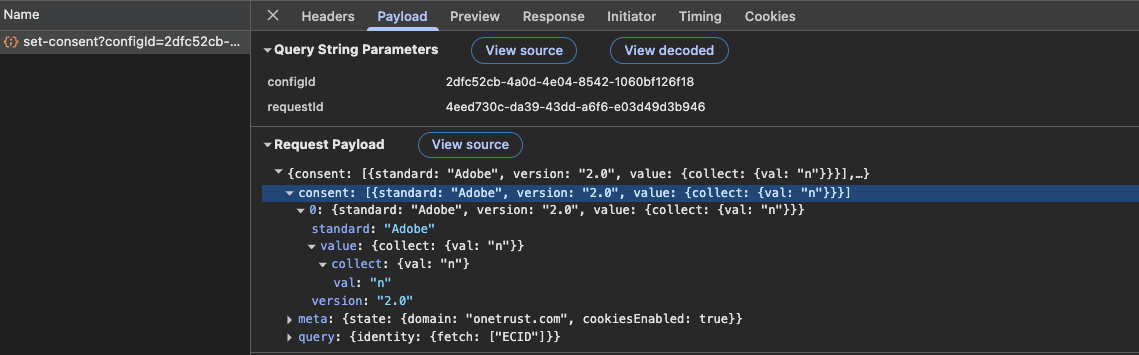
When consent is set to 'n' using setConsent:
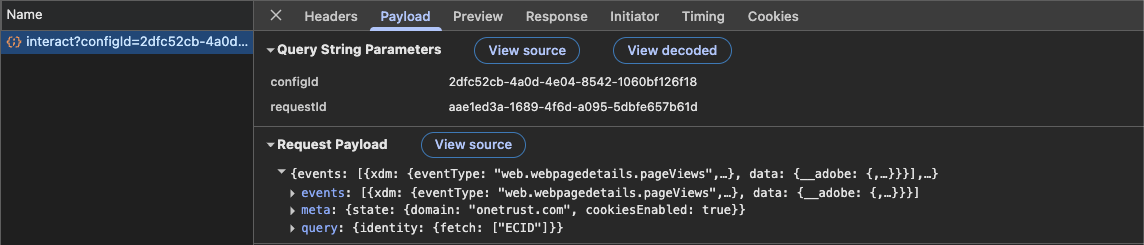
- The Web SDK stops sending events via Adobe Edge.
- Data collection is effectively disabled.
The SDK may make a network call when consent changes to log the update, but it should not send subsequent events.
Validation Methods:
| Network Requests | Adobe Consent Cookie | Set Debug State in Adobe |
|---|---|---|
Steps:
| After opting in or out, the kndctr_<orgId>_consent cookie should be dropped and reflect the consent state. | Adobe provides a setDebug command that enables additional console logging for development and debugging purposes. When debug mode is enabled, you can observe the consent-related actions performed by the Adobe Web SDK to help validate expected behavior. For more details, see the Adobe documentation here. |
Updated 3 months ago