
Google Consent Mode
Google Consent Mode enables web and app developers to modify the behavior of Google tags and SDKs based on users' consent preferences. When implemented, it allows Google services such as Google Analytics, Google Ads, Floodlight, and Conversion Linker to dynamically adjust their functionality in response to consent signals. This is achieved through defined consent types, which control specific aspects of how each product behaves depending on the user's choices.
Consent types include:
| Consent type | Description | Consent statuses |
|---|---|---|
| analytics_storage | Enables storage, such as cookies (web) or device identifiers (apps), related to analytics, for example, visit duration. | granted | denied |
| ad_storage | Enables storage, such as cookies (web) or device identifiers (apps), related to advertising. | granted | denied |
| ad_user_data | Sets consent for sending user data to Google for online advertising purposes. | granted | denied |
| ad_personalization | Sets consent for personalized advertising. | granted | denied |
For more information, see Google's documentation here: About consent mode.
Setting up Google Consent Mode (GCM) for iOS/tvOS
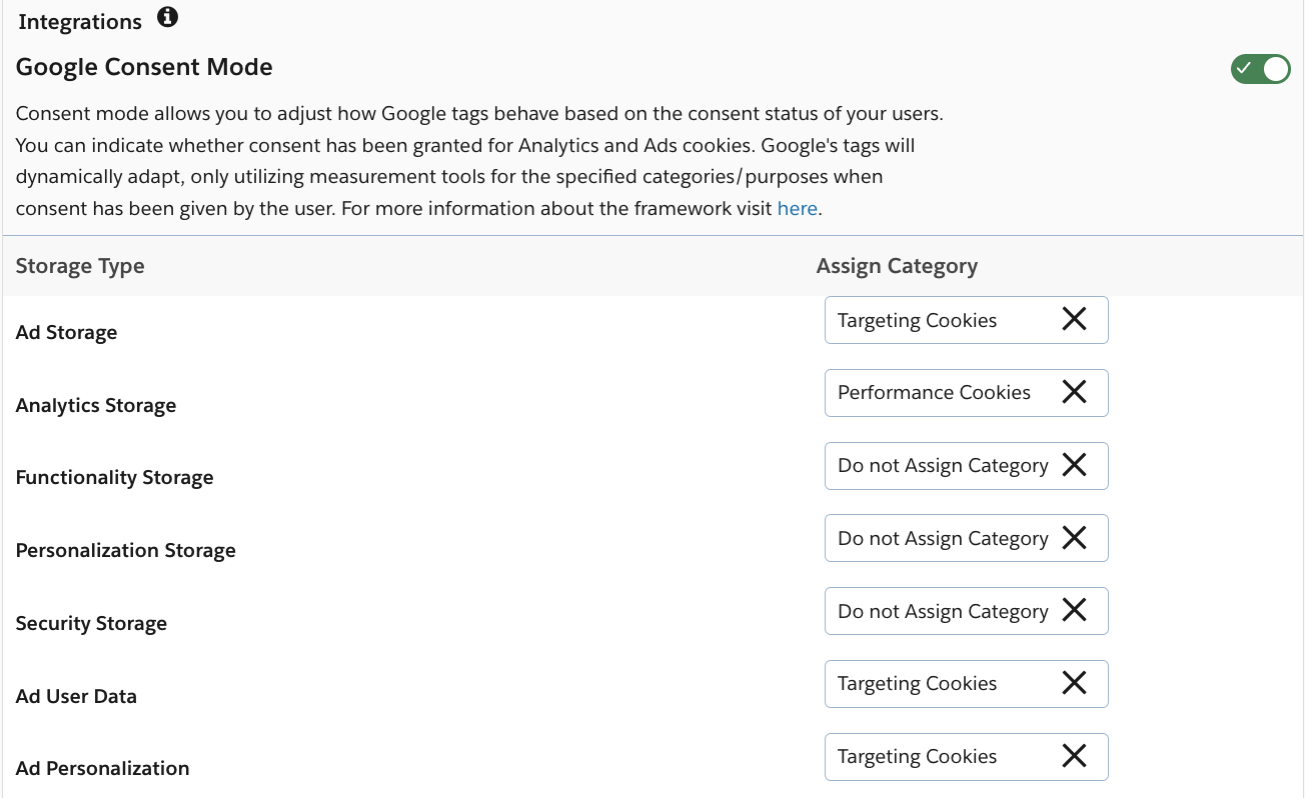
- Enable Google Consent Mode in your geolocation rules and map categories from the OneTrust CMP to Google storage types.
- Ensure the supported Google products (e.g. Firebase) have been installed on the app already.
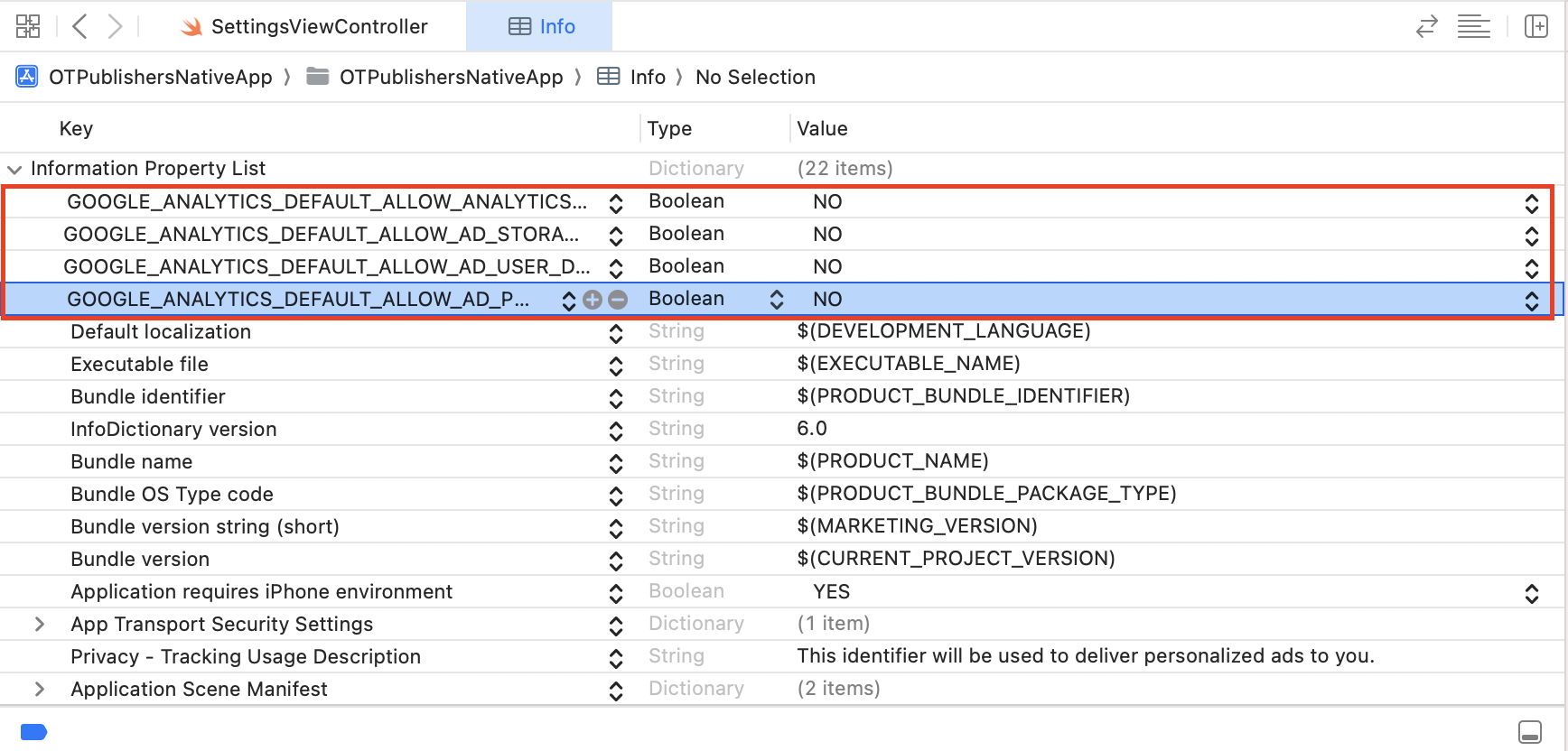
- Set the default consent values for GCM in your app's
info.plist. Value can be set to true or false.<key>GOOGLE_ANALYTICS_DEFAULT_ALLOW_ANALYTICS_STORAGE</key> <false/> <key>GOOGLE_ANALYTICS_DEFAULT_ALLOW_AD_STORAGE</key> <false/> <key>GOOGLE_ANALYTICS_DEFAULT_ALLOW_AD_USER_DATA</key> <false/> <key>GOOGLE_ANALYTICS_DEFAULT_ALLOW_AD_PERSONALIZATION_SIGNALS</key> <false/>
Decision PointFor SDK versions 202512.1.0+, see this section for next steps.
For SDK versions <202512.1.0, continue with the steps below.
- Query for Google Consent Mode consent statuses from the OneTrust SDK.
getOTGoogleConsentModeData()will return an object containing the current status and values for each of the Google Consent types based on the mapping done in Step 1.
OTPublishersHeadlessSDK.shared.getOTGoogleConsentModeData().otSDKStatus
OTPublishersHeadlessSDK.shared.getOTGoogleConsentModeData().consentType| Status type | Description |
|---|---|
| notInitialized | Application calls method before a successful SDK initialization (at least once). Consent has not been collected. |
| notConsented | Application calls method before user interacts with and dismisses the banner. Consent has not been collected. |
| consented | Application calls method after user has interacted with the banner. Consent has been collected. |
| Consent type | Description |
|---|---|
| unassigned | 'Do not Assign Category' was mapped to this storage/consent type in the geolocation rules. |
| undefined | The SDK was not initialized successfully at least once, data was not fetched, or the mapped category does not exist (no SDKs assigned). |
| denied | Consent is rejected/withdrawn for the associated category. |
| granted | Consent is given/provided to associated category. |
Sample Response
//consent interaction status
OneTrust GCM SDK status: consented

//consent value of each storage type
OTGoogleConsentType(
  analyticsStorage: OTPublishersHeadlessSDK.OTGoogleConsentMode.granted,
  adStorage: OTPublishersHeadlessSDK.OTGoogleConsentMode.granted,
  adUserData: OTPublishersHeadlessSDK.OTGoogleConsentMode.granted,
adPersonalization: OTPublishersHeadlessSDK.OTGoogleConsentMode.granted)- Update the desired Google library from the consent retrieved in Step 4 with the
setConsent()public method from Google.
Analytics.setConsent([
.analyticsStorage: .granted,
.adStorage: .granted,
.adUserData: .granted,
.adPersonalization: .granted,
])
As the application will need to retrieve the consents for each Consent type and set it in the Google library as indicated in steps 4 and 5, OneTrust has written a function to assist with and simplify the process:
-
func handleGoogleConsentMode() { let gcmOTData = OTPublishersHeadlessSDK.shared.getOTGoogleConsentModeData() #if canImport(FirebaseAnalytics) Analytics.setConsent([ .adStorage: gcmOTData.consentType.adStorage == .granted ? .granted : .denied, .analyticsStorage: gcmOTData.consentType.analyticsStorage == .granted ? .granted : .denied, .adUserData: gcmOTData.consentType.adUserData == .granted ? .granted : .denied, .adPersonalization: gcmOTData.consentType.adPersonalization == .granted ? .granted : .denied, ]) #endif } -
OneTrust recommends calling the
handleGoogleConsentMode()function above when the OTConsentUpdated broadcast is triggered. OTConsentUpdated is triggered every time any OneTrust UI is dismissed. More info on that method here .NotificationCenter.default.addObserver(self, selector: #selector(returnConsentOTConsentUpdated(_:)), name: Notification.Name("OTConsentUpdated"), object: nil) @objc func returnConsentOTConsentUpdated(_ notification:Notification){ handleGoogleConsentMode() }
For more information regarding consent mode setup, see: Set up consent mode for apps.
202512.1.0+ SDK
As of 202512.1.0, the OneTrust SDK automatically synchronizes user consent preferences with the Firebase Analytics SDK without additional code from the app.
- Complete Steps 1 - 3 above
- Add
-ObjCinto your app target's Other Linker Flags. This ensures Firebase classes are retained in memory and accessible by the OneTrust SDK. - (Optional) Enable Firebase Analytics debug logging by adding the following arguments to your app’s scheme:
-FIRAnalyticsVerboseLoggingEnabledand-FIRAnalyticsDebugEnabled. These flags help print Firebase Analytics logs for troubleshooting.
Once the setup is complete, the OneTrust SDK will:
- Detect if Firebase is present in the app
- Automatically invoke
setConsent()for each supported and mapped consent type
For details on the setConsent() method, refer to Google’s documentation.
Verifying consent settings
You can verify that your consent settings are working as intended by viewing the Xcode debug console for your app.
-
Enable verbose logging on your device.
-
In the Xcode debug console, look for:
- analytics_storage
- ad_storage
- ad_user_data
- ad_personalization
For example, if Ad storage are enabled, you'll see the following message:
ad_storage is granted.
Google Consent Mode for IAB TCF
Applications can be configured to instruct Google to interpret the IAB TC String in order to determine consent values for the following Consent Mode settings:
| ad_storage |
| ad_personalization |
| ad_user_data |
In the OneTrust platform, enable the Google Consent Mode toggle in geolocation rules using the IAB TCF template. When this configuration is enabled, the SDK will write the key IABTCF_EnableAdvertiserConsentMode to local storage and allows Google to automatically adjust its signal behavior according to TC String consents.
| Key | value | Description |
|---|---|---|
| IABTCF_EnableAdvertiserConsentMode | 1 | Indicates GCM is enabled for TCF |
| IABTCF_EnableAdvertiserConsentMode | 0 | Indicates GCM is disabled for TCF |
Google Consent Mode storage types are mapped to TCF purposes as follows:
| Purpose | Description | Google behavior when Purpose is denied |
|---|---|---|
| 1 | Store and/or access information on a device. | ad_storage = denied ad_user_data = denied |
| 3 | Create a personalised ads profile | ad_personalization = denied |
| 4 | Select personalized ads | ad_personalization = denied |
For more information about IAB TCF integration behavior with GCM, see Google's documentation Enable consent mode TCF integration.
Updated 10 months ago